How To Reduce Lag In Roblox Beta On Mobile (2026)
Are you experiencing lag while playing Roblox Beta on your Android device? Slow loading, low FPS, freezing, and delayed movements can make gaming frustrating. Fortunately, you improve performance by adjusting a few settings and managing your smartphone properly.
We cover common causes of Roblox Beta mobile lag, eight effective solutions, recommended graphics settings, and troubleshooting tips to help you enjoy smoother gameplay.
Why Does Roblox Beta Lag On Mobile?
Roblox Beta lag due to weak internet, limited RAM, high graphics settings, phone overheating, or outdated application versions. A weak connection causes high ping and delayed movements. Limited device resources and background apps may reduce FPS, while high graphics settings can make gameplay slower.
Phone overheating and outdated software also cause freezing, stuttering, and unexpected performance issues.
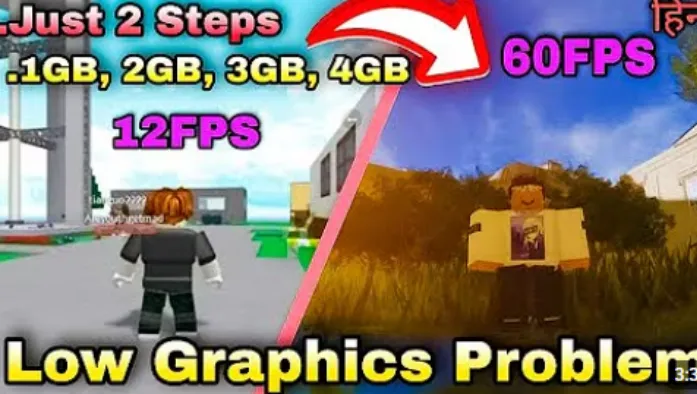
8 Effective Ways To Reduce Lag In Roblox Beta On Mobile
You can improve Roblox Beta performance by following these eight simple methods.
1. Check Your Internet Connection
Use a stable Wi-Fi or mobile data connection to reduce high ping and interruptions.
2. Lower Roblox Graphics Settings
Reduce graphics quality to improve FPS and make gameplay smoother on low-end devices.
3. Close Unnecessary Background Apps
Close unused applications to free up RAM and processing resources.
4. Keep Roblox Beta Updated
Install official updates to benefit from available bug fixes and compatibility improvements.
5. Prevent Your Phone From Overheating
Take breaks, avoid direct sunlight, and let your phone cool down during long gaming sessions.
6. Clear Unnecessary Cache Files
Clear the Roblox app cache through your Android settings to resolve some temporary issues.
7. Restart Your Mobile Device
Restarting your phone can clear temporary glitches and refresh system resources.
8. Use Suitable Game Settings
Choose less demanding experiences and adjust available settings for smoother gameplay.
You can also explore different ways to customize your character with our guide to Best Free Avatar Accessories Available In Roblox Beta and discover free items to personalize your avatar.
Best Roblox Beta Settings For Smooth Gameplay
Choosing suitable settings can help improve Roblox performance on Android devices. However, the best configuration depends on your smartphone’s hardware and the experience you are playing with.
|
Setting |
Recommended Option |
|
Graphics Mode |
Manual, if available |
|
Graphics Quality |
Low to Medium |
|
Background Apps |
Close Unnecessary Apps |
|
Internet Connection |
Stable Wi-Fi or Mobile Data |
|
Storage Space |
Keep Sufficient Free Space |
|
Device Temperature |
Avoid Excessive Heating |
|
Application Version |
Latest Official Version |
These are general recommendations rather than guaranteed optimal settings. Adjust them according to your device’s performance and gaming requirements.
How To Fix High Ping And FPS Drops In Roblox Beta
High ping and FPS drops are different problems that affect your gaming experience. High ping is usually related to internet connectivity, while FPS drops are generally associated with device performance and graphics processing.
If you experience high ping, try these methods:
- Connect to a stable Wi-Fi network.
- Move closer to your wireless router.
- Avoid downloading large files while playing.
- Check your mobile data signal.
- Restart your router if the connection becomes unstable.
If you experience FPS drops, consider these adjustments:
- Reduce graphics quality.
- Close unnecessary background applications.
- Restart your smartphone.
- Prevent excessive device heating.
- Choose less demanding Roblox experiences.
Identifying the main cause can help you select the right solution and improve gameplay performance.
Common Mistakes That Make Roblox Beta Lag
Sometimes, small mistakes can negatively affect gaming performance. Avoiding these habits may help your smartphone run Roblox more smoothly.
Using Maximum Graphics Settings
Higher graphics quality can put extra pressure on your smartphone’s hardware. Choose suitable graphics settings instead of always selecting the highest option.
Running Too Many Background Applications
Multiple applications can consume RAM and processing resources. Close unnecessary apps before launching Roblox Beta.
Ignoring Phone Overheating
Playing continuously while your device becomes excessively hot may reduce performance. Take breaks and allow your smartphone to cool down.
Using Unstable Internet
Weak Wi-Fi and mobile data signals can cause high ping and delayed responses. Choose a reliable network whenever possible.
Ignoring Available Updates
Outdated application software contain bugs or compatibility issues. Check for official updates regularly to receive available improvements.
Frequently Asked Questions (FAQs)
Conclusion
Reducing Roblox Beta lag is easier by lowering graphics settings, using stable internet, closing background apps, and preventing overheating. Choose settings that suit your Android device for smoother gameplay and a better gaming experience.